
Star Rating Card: Route Unhappy Users to Feedback

02 Nov 2026
This post builds a star rating card in the Amply builder, with no app code. The card records each answer as an event. Low ratings go to a private feedback screen. A later campaign can then target only the people who rated high.
The example is Seabook, an app that identifies fish and marine life from a photo. Every screenshot is its real card and campaign. The earlier post on intercepting negative reviews built the same flow with a rating popup in the app's code.
What the user sees
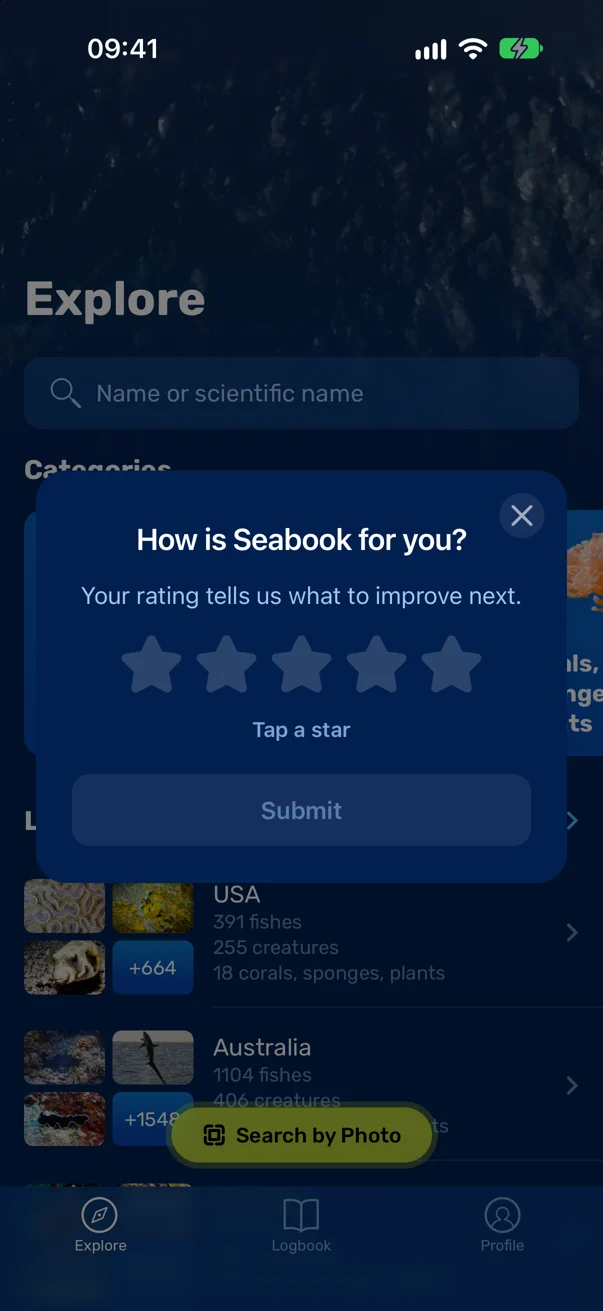
A diver saves a species to their collection. A moment later a card in Seabook's own colours asks how the app is working for them. Tapping a star fills the stars up to it and names the rating. Submit sends it.

What the app needs
Three things, all of which Seabook already had, so the card needed no new code:
- Amply SDK 0.12.0 or later. Older versions do not show builder cards. Seabook targets its own app version 1.17.1, the first release with a new enough SDK.
- An event for the right moment. The app has to tell Amply when something good happened. For Seabook it is saving a species.
- A deeplink to feedback. A deeplink is a link that opens a specific screen in your app. Here it opens the screen where people write to the team.
One more check: if the app already calls the store review prompt on its own, remove that call. Otherwise people may get asked twice.
How the card is built
The card is one mini-app with eight screens. Screens in the builder have no variables, so each rating gets a screen of its own:
- Rate. The empty card: a question, five empty stars, “Tap a star” and a Submit button that does nothing yet.
- Rated 1 to Rated 5. The same card with that many stars filled and a label (“Needs work”, “I love it”). Every star on every screen opens the screen for its rating, so a person can change their mind.
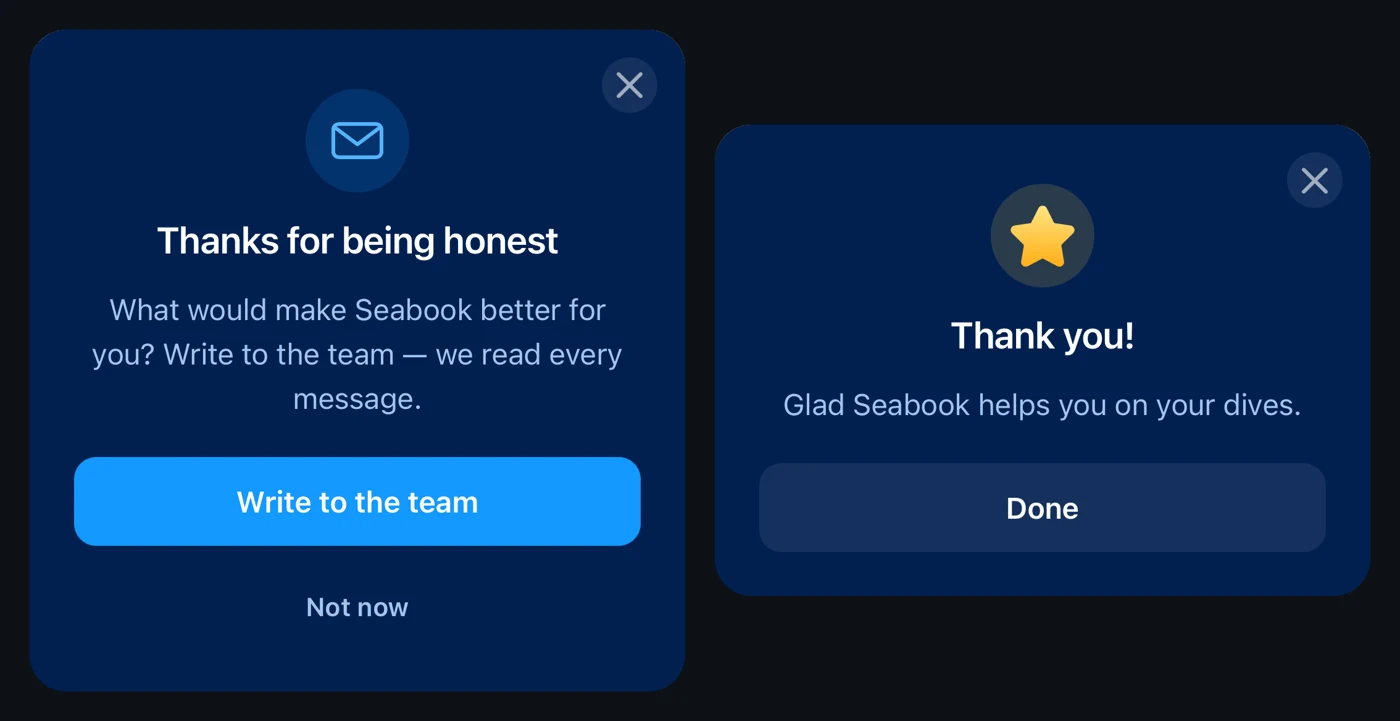
- Feedback. Shown after a rating of one to three. It thanks the person and offers to write to the team.
- Thanks. Shown after four or five. A thank-you and a Done button, nothing else.
Then every button gets its actions. The stars switch screens with no transition, so the swap reads as stars filling in.
- Each star: Navigate to the screen for its rating, with the transition set to None.
- Submit on “Rated N”: Track event AppRated with rating = N (a number) and prompt = stars_card (a string). Then Navigate to Feedback for one to three stars, or to Thanks for four or five.
- “Write to the team”: Track event RatingFeedbackOpened, then Open link with the app’s feedback deeplink, then Close.
- “Not now”, Done and the ✕: Close. “Not now” also tracks RatingFeedbackDeclined first.
Order matters. Navigate and Close leave the screen, so Track event has to come before them.
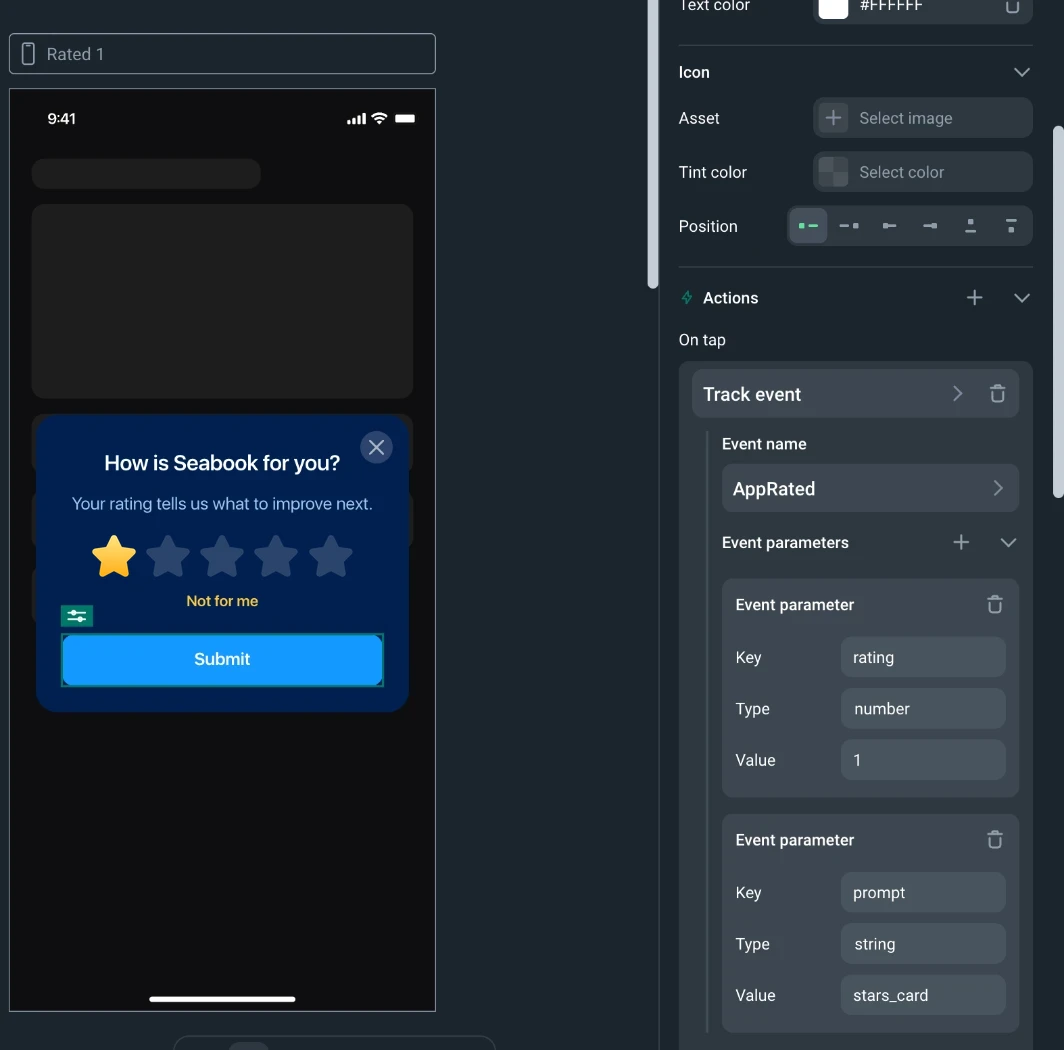
One screen per rating looks repetitive in the builder. It is also what makes the rating exact: the event parameter is a fixed number on each button, not something read from the screen.
When the card is ready, publish the mini-app and pick that version in the campaign's What step. A running campaign keeps the version it was given. To ship an edit, publish again and point the campaign at the new version.
The rating is an event
Submit tracks AppRated with two parameters: rating, a number from 1 to 5, and prompt, which names the card. The SDK treats it exactly like an event your app sends itself.
The card itself already branches: Submit opens Feedback or Thanks. The event is what outlives the card. It can trigger another campaign, count towards a goal, and appear in any audience rule. “Rated four or five” becomes a segment you can target later, without a new app release.
The card is the question. The event is what makes the answer usable.
One to three stars: ask what to fix
A low rating opens the Feedback screen. It thanks the person for being honest and offers one button, “Write to the team”. The button tracks RatingFeedbackOpened and opens Seabook's existing feedback screen through a deeplink, which starts an email to the team.
Use whatever channel your app already has: a form, a support chat, an email. The point is that the complaint reaches you privately, while you can still fix it.
Four or five stars: the store review comes later
The tempting move is to open the store review prompt right after a five-star tap. Google's in-app review guidelines rule that out: no questions about the user's opinion before or while the review card is shown. So the Thanks screen only says thank you.
A second campaign asks for the review on a later day. It uses the Rate Review action, which opens the system prompt on iOS and Google Play. Its audience is built from the event:
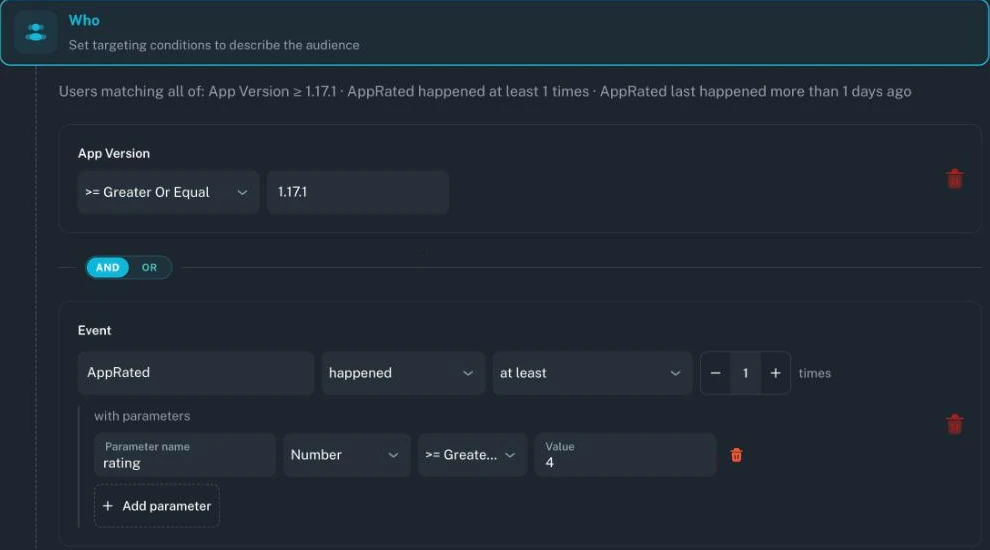
It fires on the next saved species, once per device. The store also limits how often its prompt appears. The campaign asks at a good moment, and the store decides whether to show it.
Be clear about what the delay does. It keeps the question and the store prompt apart in time. It does not make picking who gets the prompt by their answer risk-free. Both stores watch for apps that steer who leaves a rating, as Apple's guideline 5.6.3 shows.
If you want no doubt, drop the rating condition. Ask everyone at a good moment, and use the rating only to follow up with unhappy users.
When the card appears
Ask right after the person got something from the app, never during onboarding. For Seabook that moment is saving a species:
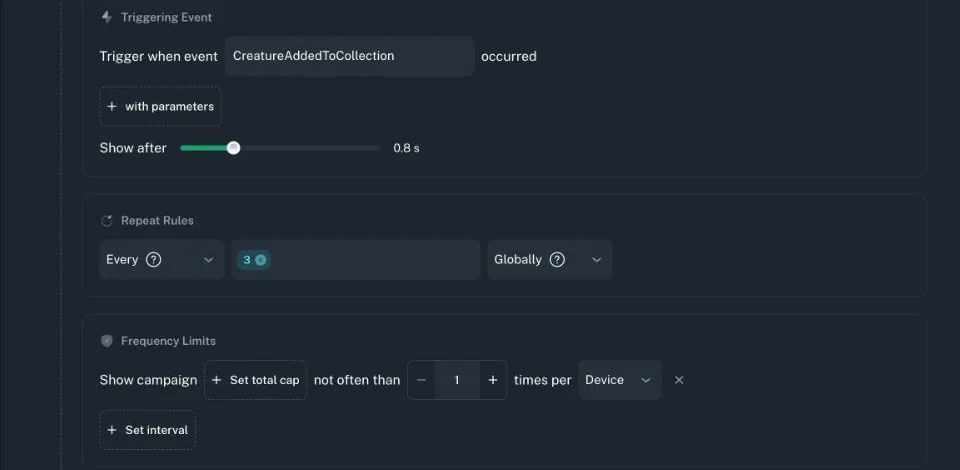
- Trigger: CreatureAddedToCollection, the event Seabook already sends when someone saves a species. Every third save makes the card eligible. It waits 0.8 seconds so the save animation finishes first.
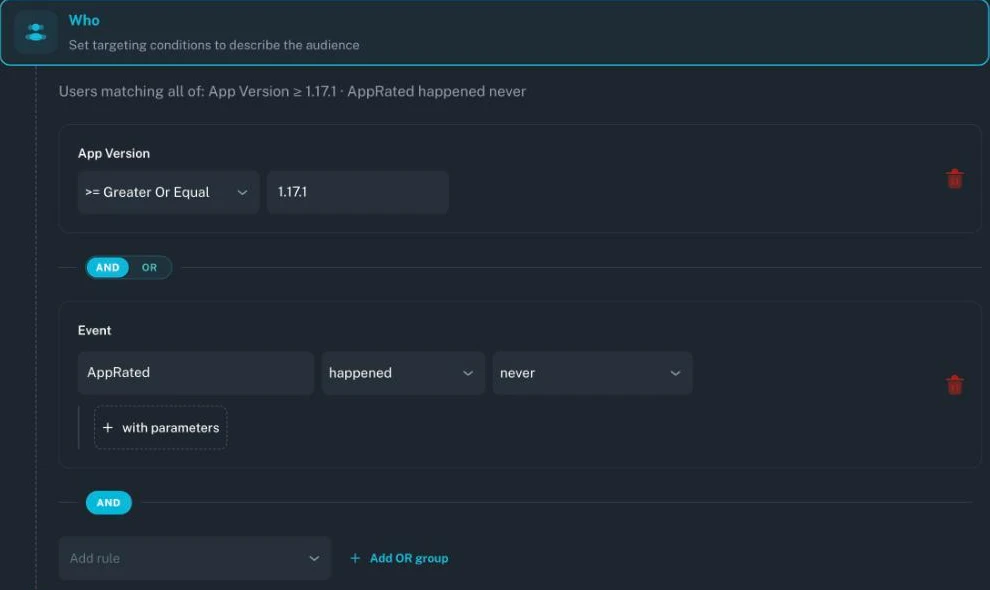
- Who: devices on Seabook 1.17.1 or later where Amply has not recorded AppRated yet.
- How often: once per device. If someone closes the card with the ✕, it does not come back. Only Submit records AppRated.
Check it before launch
- Open the draft on a phone. The campaign’s debug link, or its QR code, opens the card inside the real app before launch. Nothing is counted in that mode.
- Walk every branch. Change the stars a few times. Submit a low rating and a high one. Close one card with the ✕ without submitting.
- Follow the feedback button. Make sure the deeplink lands on the screen where people can actually write to you.
- Do not judge the store prompt from a debug build. On Android, debug builds show a test review dialog, not the Google Play one.
What to measure
- How many answer. Give the card’s campaign a goal for AppRated. Its statistics show how many people who saw the card submitted a rating.
- How the ratings split. Goals accept parameter filters. Seabook’s card has one goal for rating of four or more and one for three or less.
- How many unhappy users reach the team. A goal on RatingFeedbackOpened counts taps on “Write to the team”. Count the messages that actually arrive separately.
- What the messages say. Read them weekly and tag the reasons. That list is the roadmap the one-star reviews would have written in public.
- The store rating. Watch the rolling average over the following months. It moves slowly, so judge it on weeks, not days.
The Takeaway
The rating card, the feedback route and the later review ask all live in Amply, not in your app's code. Change the wording or the moment, publish, and users get the new version without an app release.
Inside the card, Submit picks the next screen. After the card, AppRated is what every later campaign targets. If you move the threshold, change both: the buttons' destinations and the audience rules.